 Pages
Pages Labels
 about
about
 art
art
 blogger how to
 deleted
 eros
eros
 frustrari
 funny
funny
 games
games
 hmmm
hmmm
 how to
 interesting
 log
log
 mini
mini
 movie
movie
 music
music
 my own
 not funny
 photo
photo
 remember
 share
share
 tech
tech
 to do
to do
 travel
 updated
 warning
 NU DA SPAGA!
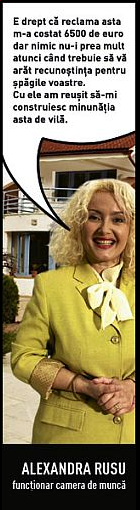
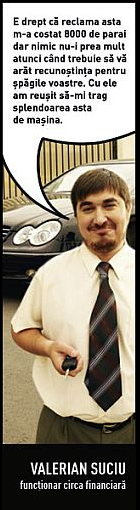
Cei 10 pasi ai crizei financiare, pe intelesul tuturor:
1. Ion are o crasma. Pentru a-si spori vanzarile, el decide sa le ofere clientilor (majoritatea - betivani neispraviti) bautura pe datorie.
Isi noteaza cu grija datoria fiecarui client, tinand astfel un bilant al creditelor acordate. Pe masura ce se raspandeste vorba ca Ion te serveste acum in schimbul promisiunii de a plati in viitor, numarul clientilor creste, iar vanzarile de bautura asisderea. Pe faza, Ion profita de ocazie si scumpeste tuica si berea.
2. Un consilier bancar abil isi da seama ca afacerea lui Ion este de viitor si ii acorda acestuia un credit pentru dezvoltarea carciumii. Creditul este garantat cu creantele acumulate de Ion - promisiunile de plata ale betivanilor care ii trec pragul.
3. Superiorii consilierului bancar - baieti destepti, cu indelungata expertiza in mobilizarea resurselor financiare - refinanteaza creditul acordat lui Ion prin emisiunea a trei tipuri de obligatiuni, garantate desigur cu datoriile alcoolicilor: BEAUBOND, BEATBOND si VOMITBOND.
4. Aceste titluri financiare sunt cumparate si tranzactionate apoi pe piata internationala. Multi investitori nu inteleg ce inseamna aceste obligatiuni si cu ce sunt garantate. Cu toate acestea, cererea pentru ele creste, alimentata de cresterea continua a cotatiilor.
5. Intr-o buna zi, cu toate ca preturile continua sa urce, managerul de risc al unei banci (concediat ulterior, fiindu-i reprosata atitudinea pesimista) decide ca este timpul sa ceara plata datoriilor acumulate de betivii care frecventeaza crasma lui Ion.
6. Datornicii nu au cum sa plateasca. Ion nu isi poate rambursa creditul contractat de la banca si intra in faliment.
7. Obligatiunile BEAUBOND si BEATBOND isi pierd 95% din valoare. VOMITBOND sta ceva mai bine, valoarea ei stabilizandu-se dupa o prabusire de 80%.
8. Furnizorii carciumii lui Ion intampina serioase dificultati financiare, dupa ce clientul lor a inchis portile si dupa ce obligatiunile in care investisera masiv si-au pierdut valoarea. Furnizorul de tuica este preluat de o firma concurenta, iar fabrica de bere intra in faliment.
9. Banca este salvata de la faliment de catre guvern, in urma unor consultari dramatice intre partidele politice.
10. Fondurile necesare acoperirii pierderilor sunt obtinute prin impozitele platite de catre persoanele care nu consuma alcool.
Monday, June 1, 2009
0 commentsCriza, pe intelesul tuturor
 e-mail this post to a friend
 Labels:
frustrari
::
funny
Labels:
frustrari
::
funny
Monday, May 25, 2009
0 commentsTuesday, May 19, 2009
0 commentsPhoto - manipulation
Erik Johansson - playing with photos he took himself.









e-mail this post to a friend
Labels:
photo
Tuesday, May 12, 2009
0 commentsDe prin mailuri - criza
Domnule Prim Ministru, daca reusiti sa-mi ridicati fusta la nivelul preturilor actuale, sa-mi coborati chilotii la nivelul contului meu din banca, sa-mi prezentati o scula la fel de dura ca timpurile pe care le traim si sculata la nivelul costurilor gigacaloriei si, mai ales, daca puteti sa ma faceti din vorbe asa cum ii faceti pe alegatori, atunci pe cuvant ca nu va iau niciun ban!!!
e-mail this post to a friend
Labels:
funny
Tuesday, May 5, 2009
0 commentsHow to - create a right click shell command in explorer
For many times I wanted to have available a simpler method to manage certain files within explorer interface (we are discussing about Windows XP, but should work also in Vista).
For example the ".001" files and so on, related to old WinRAR archives.
First you should right click on the ".001" file, choose "open with..." and select "WinRAR" from your available executables. Now, you can OPEN ONLY the .001 files which should relate themselves to the other .002, .003, ... files and the rar interface is opened.
From that interface, you can choose the "extract" command, or simply drag&drop your files outside of the rar window, in whichever folder you want.
So, this is not a simple and fast solution, isn't it? Because you have to do it each time for every split archive.
A much convenient solution is to create only once a command and select that command for the archive you want by choosing it from a shell menu (right click).
First, we have to create the registry entries: manually, or creating a .reg file in which we put the commands.
You might say that it's the same, with both methods, but you can save the .reg file and use it every time you re-install the operating system, so you don't have to remember so much details. Or, create one .reg file for each command you like.
STEP 1
Create a text file somewhere. Choose a descriptive file name for it. Work only with Notepad or another simple text editor (Microsoft Office Word is not good for this and not even Wordpad).
HOW TO:
- right click on your desktop, choose "NEW" and then "text document";
- rename "New Text Document.txt" in "extract with rar.txt"
We will keep for the moment the extension .txt in order to work faster.
- open the "extract with rar.txt" file by double click on it
STEP 2
Paste in your .txt file the following text:
-->
Windows Registry Editor Version 5.00
[HKEY_CLASSES_ROOT\*\shell\rarextract]
@="&EXTRACT with WinRAR"
[HKEY_CLASSES_ROOT\*\shell\rarextract\command]
@="C:\\Program Files\\WinRAR\\winrar.exe e -r \"%1\""
[HKEY_CLASSES_ROOT\Directory\shell\rarextract]
@="EXTRACT &with WinRAR"
[HKEY_CLASSES_ROOT\Directory\shell\rarextract\command]
@="C:\\Program Files\\WinRAR\\winrar.exe e -r \"%1\""
<-- 
NOTE: paste only the text between the arrows --> and <--
NOTE2: instead of "directory", you can put "folder" and still works
STEP 3 Modify the path to the Winrar executable as it is available on your system. Please note that the backslash "\" characters form the path must be double.
STEP 4 Save the .txt file by "Ctrl + S" keyboard command or by "File" -> "Save" menu option.
STEP 5
Rename the .txt file in .reg file.
Right click on the "extract with rar.txt" file, choose "rename" and change the "txt" extension into "reg".

STEP 6
Depending on how is set your operating system (again, we are talking about Windows XP), double click on the .reg file and select "open" or right click on it and select "merge".
Select "YES" on the warning texts and that's it!
The "EXTRACT with WinRAR" command is now available when you right click on an old split winrar archive.
And also for every other type of files, but it will not work for them.
Now, when you have a split archive which begins with .001 for the firs part of it, you can simply right click on this first file of the archive and select the "EXTRACT with WinRAR" command from the shell menu.
e-mail this post to a friend
Labels:
how to
 Posts (Atom)
 SEARCH
 Blog Archive
 Useful
 Fun / Miscelaneous





 Games
Games Movies
 Music
Music Links
Links Interesting
 Eros
Eros about : blog
 site tracking